 MacDelta
How to track folder size changes on Mac
A folder’s current size answers “how big is it?” To find out what grew, you need an earlier measurement of the same folder.
Take a measurement in Finder
- Select the folder in Finder.
- Press Command-I to open Get Info.
- Wait for the size calculation to finish. Note the size, folder location, and time.
- Repeat after the download, installation, or work session you want to check.
This is enough for an occasional before-and-after check. Finder shows the current information; you need to keep the earlier measurement yourself. Apple’s Get Info instructions cover the same shortcut for files, folders, and disks.
Compare the same folder using the same method each time. A folder’s reported size and the change in free disk space can differ, so don’t use one as a substitute for the other.
Record folder sizes with MacDelta
MacDelta keeps measurements for the folders you choose. You can compare the latest capture with the previous one or with a saved snapshot.
- Open Monitored Folders and select the folders you want to follow, such as Downloads or a project directory.
- Complete the access steps for any protected folders. If access is incomplete, resolve it before relying on the comparison.
- Choose Check Now for the first measurement. Save a named snapshot if you want to return to this point later.
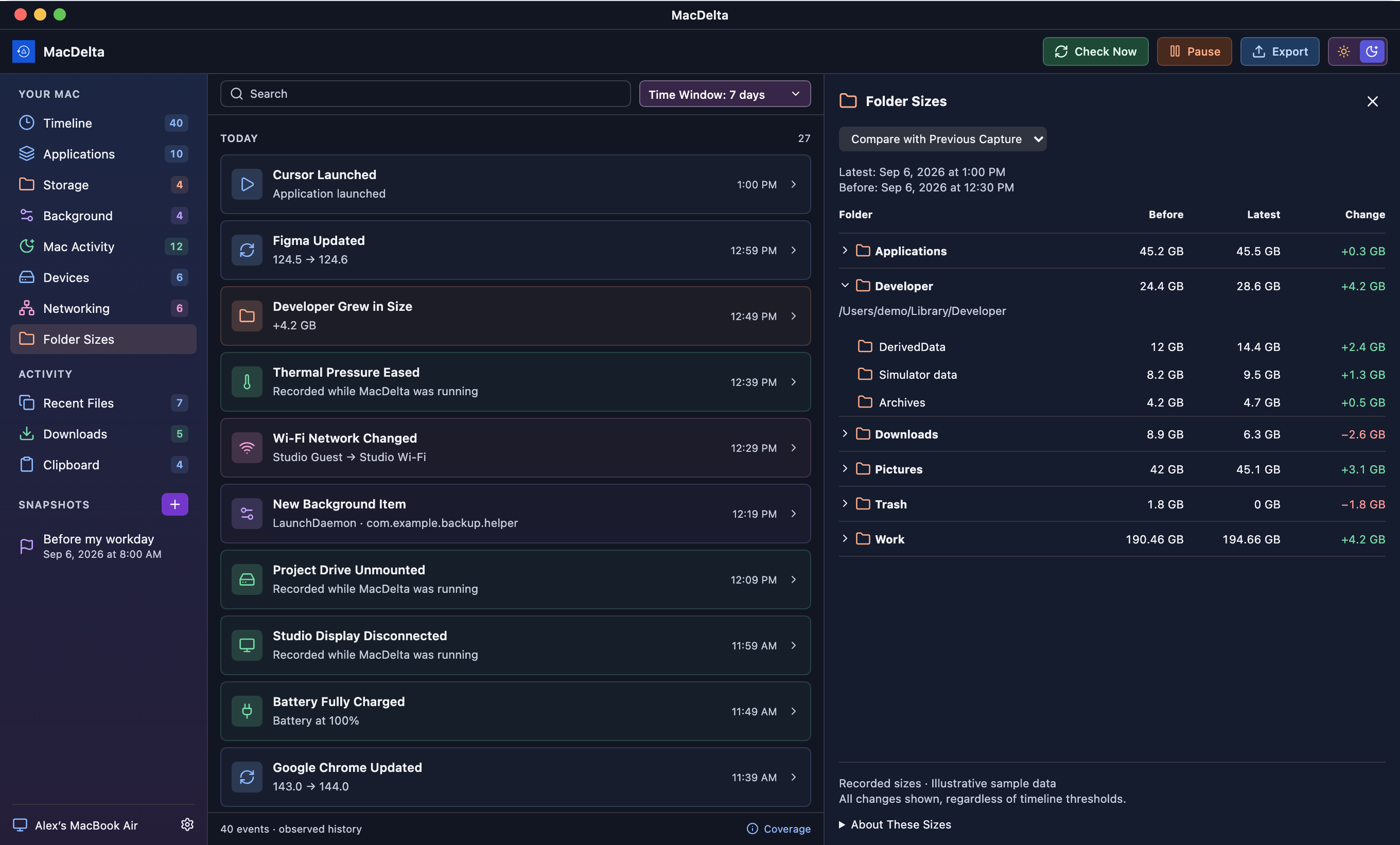
- After some work, capture again and open Folder Sizes in the sidebar.
- Choose the earlier capture or snapshot to compare against. Expand a folder to inspect the measured subfolders.
Read the change, then look inside
In the example above, Developer grew from 24.4 GB to 28.6 GB. The subfolder rows account for that 4.2 GB increase: DerivedData grew by 2.4 GB, simulator data by 1.3 GB, and archives by 0.5 GB.
Those numbers point to where the growth occurred. They do not identify the process that wrote every byte. Use the folder location and your recent work to investigate further.
The Storage timeline highlights changes that meet its thresholds. Folder Sizes also lets you inspect smaller measured differences that did not produce a timeline event.
When a comparison is incomplete
A newly added folder needs a first measurement before it has a history. Missing permissions or an unfinished scan can leave a measurement unavailable; that should not be read as an empty folder. Changes that happen and reverse between captures can also be missed.
MacDelta observes while it is running. A saved snapshot preserves the recorded state, not the files themselves, and cannot restore deleted data. The app does not clean up folders or delete their contents.
If the growth followed an app installation, you can also check the installation history. For permission setup, use the MacDelta setup guide.