 MacDelta
How to keep clipboard history on Mac
On macOS Tahoe 26 or later, try Spotlight’s built-in clipboard history first. MacDelta is another option if you want copied items alongside your Mac’s history, with search, pinning, and controls for what gets recorded.
Use clipboard history in Spotlight
- Press Command-Space to open Spotlight.
- Press Command-4 to switch to Clipboard.
- If prompted, allow clipboard results. Search for the item you need.
- Select the result and press Command-C to copy it. Return to your document and paste with Command-V.
Apple’s Spotlight clipboard guide also explains how to clear the saved history. If your Mac runs Sonoma 14 or Sequoia 15, this Spotlight feature is not available.
Start recording in MacDelta
Clipboard recording in MacDelta is off by default. It starts only after you turn it on, and it does not import the clipboard contents that were already there.
- Open MacDelta and select Clipboard in the sidebar.
- Turn on Record Clipboard.
- Copy a short, non-sensitive piece of text in another app.
- Return to Clipboard and select the new entry to inspect it.
MacDelta can keep text, URLs, file references, and supported images. It stores this history locally on your Mac. Recording needs MacDelta to be running; quitting the app stops it.
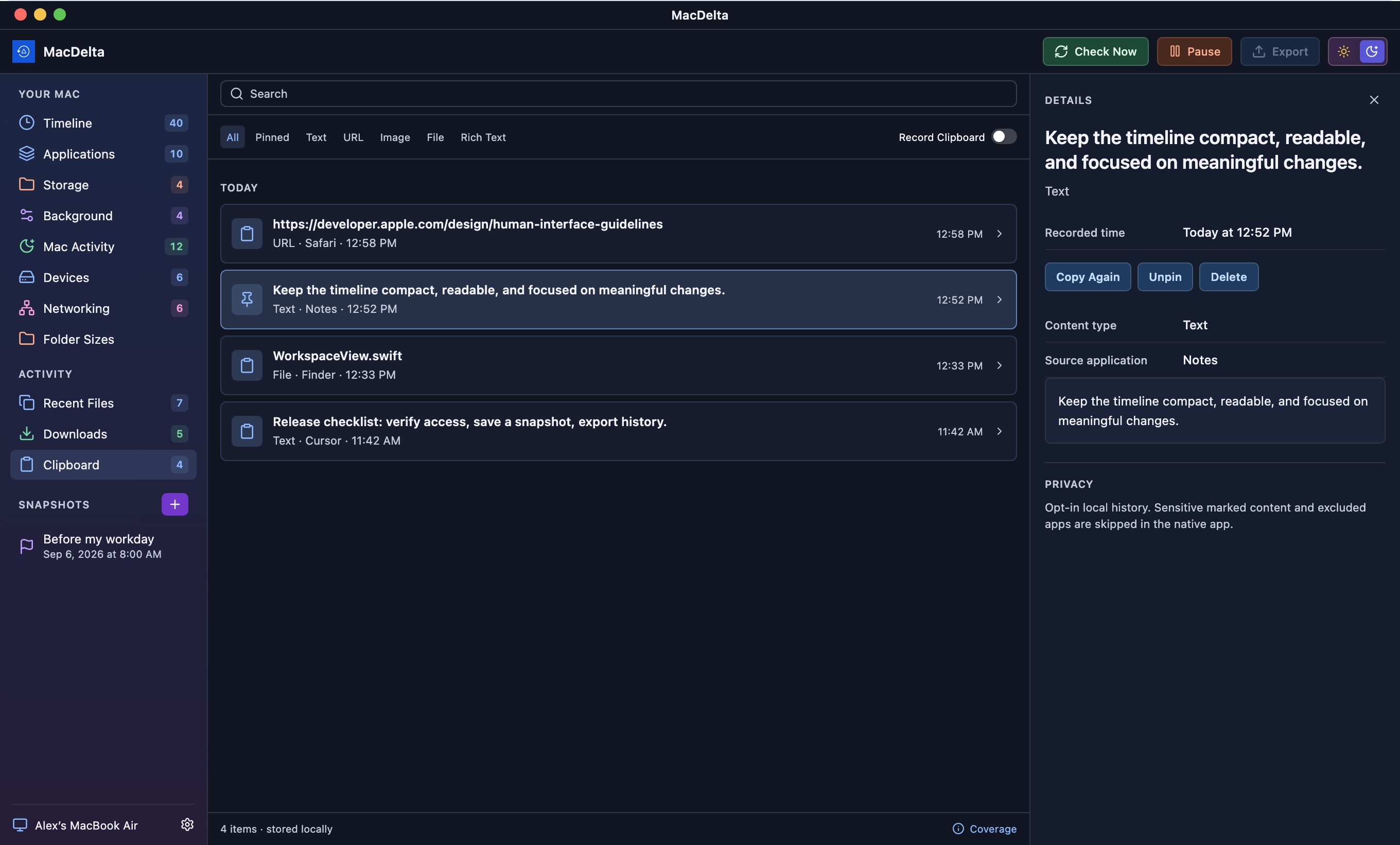
Find and reuse a saved copy
Search for a word you remember, or narrow the list by content type. Select the entry and choose Copy Again, then paste it into the app where you need it.
Pin an item you expect to use again. The Pinned filter keeps those entries easy to find. Pins are exempt from time-based expiry, though storage limits still apply; use a document or notes app for anything you need to keep permanently.
Choose what to keep
MacDelta keeps unpinned clipboard entries for seven days by default. You can change the retention period in Settings or delete individual entries from Clipboard.
The app skips clipboard content marked as sensitive and content from excluded apps. These checks cannot recognize every password, token, or private message. Pause recording before copying something you don’t want saved. Turning recording off stops new collection; it does not delete the history already stored.
Can it recover something copied earlier?
Only if that item was recorded and is still retained. Installing MacDelta now cannot recover clipboard entries from before recording began. It also does not import Spotlight’s history.
You can test the workflow with the seven-day trial. The privacy page explains what MacDelta stores, and the setup guide covers its other history features.