 MacDelta
How to see recently installed apps on Mac
Start with System Information. Its installation records can help you find when software was installed or updated. They are useful evidence, but they don’t cover every way an app can arrive on your Mac.
Check the installation records
- Hold Option, open the Apple menu, and choose System Information.
- Expand Software in the sidebar, then select Installations.
- Click the Install Date column to sort the entries. Click again if the oldest entries appear first.
- Look for the app or package name. Check the version as well as the date; an entry may describe an update.
You can also open the report through System Settings → General → About → System Report. Apple documents both routes in its System Information guide.
What those dates tell you
An installer record tells you about that installation. It does not necessarily mark the first time you used an app. Updates can produce later entries, and apps copied directly into Applications may have no installer record.
In Finder, you can also open Applications, switch to list view, and sort by Date Added if that column is available. Treat it as a clue about when an item reached that folder. Copying, moving, or restoring an app can make it different from the original installation date. Date Modified is not a reliable substitute either.
If an app is missing from the installation list, that alone does not tell you whether it was ever installed. Check the app’s location and version before drawing a conclusion.
Keep a record of changes from now on
MacDelta compares the applications it observes and records installs, updates, and removals. To start:
- Install the trial and complete setup. Import recent installation history if you want the available macOS records included.
- Choose Check Now to capture the current state.
- Open Applications in the sidebar. Use the time window and search field to narrow the list.
- Select a change to inspect its details, including the recorded version information where available.
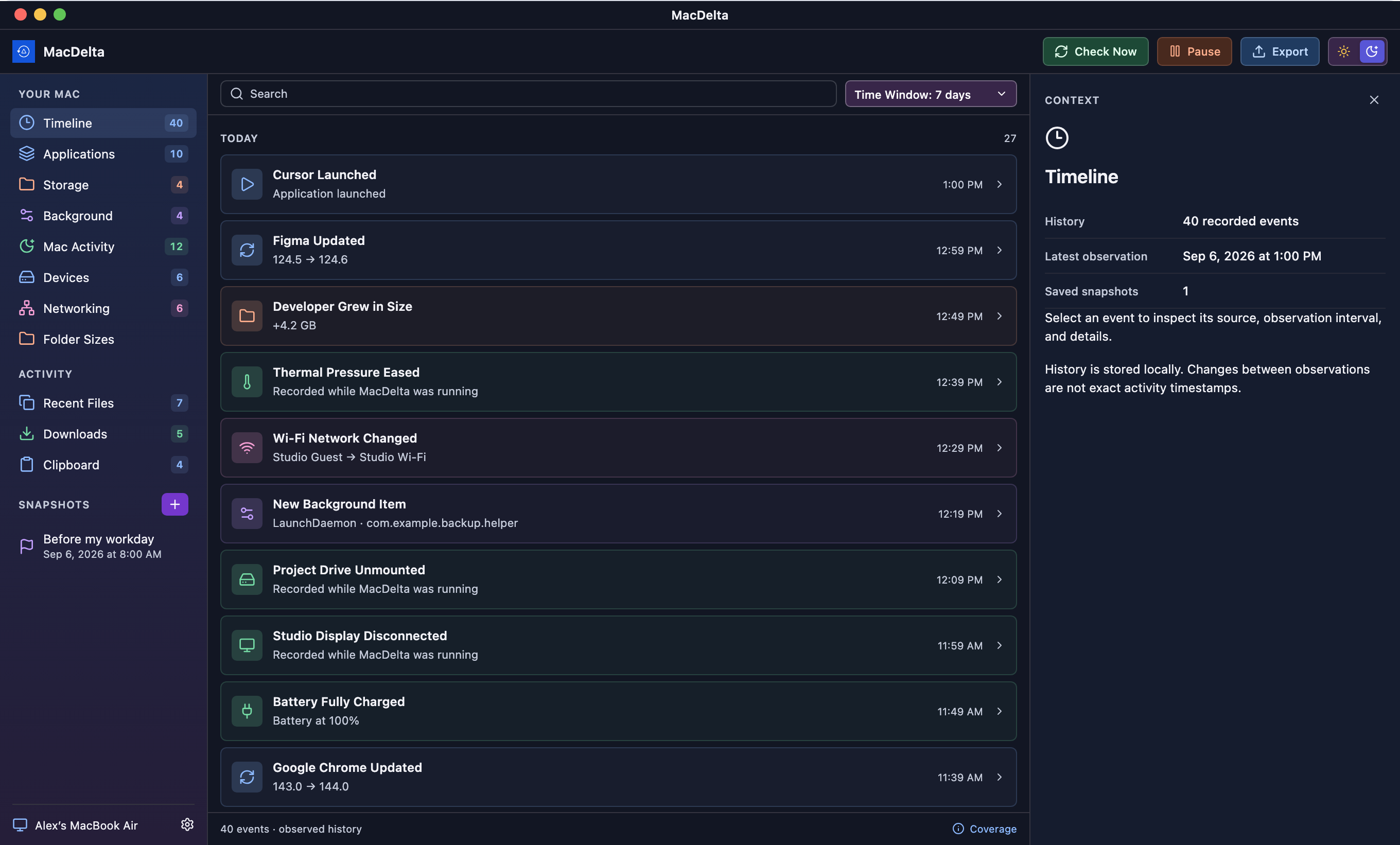
Leave MacDelta running to collect new observations. Closing its window keeps it in the menu bar; quitting stops observation. An app installed and removed between captures may be missed.
Checking what changed after an installation
Before installing a large tool or suite, save a named snapshot. After the installation, capture again and compare the two states. That gives you a starting point for checking app versions and monitored folders.
The comparison does not prove which installer caused a change. Other apps may have been active during the same interval. For storage changes, see how to compare folder sizes over time.
MacDelta cannot reconstruct a complete history from before it was installed. Imported records are partial, and a snapshot stores observations rather than a backup of your apps or files.